How to Grant Access to Artemis Marketing for Google Products
Below are the step-by-step instructions for:
- Google Analytics 4 (GA4)
- Google Search Console (GSC)
- Google Tag Manager (GTM)
- Google Business Profile (GBP)
- Google Merchant Center
If you need help at any stage, we’re happy to guide you through the process.

Google Analytics 4 (GA4)
Steps
- Visit https://analytics.google.com/
- Log in using the email linked to your Google Analytics account.
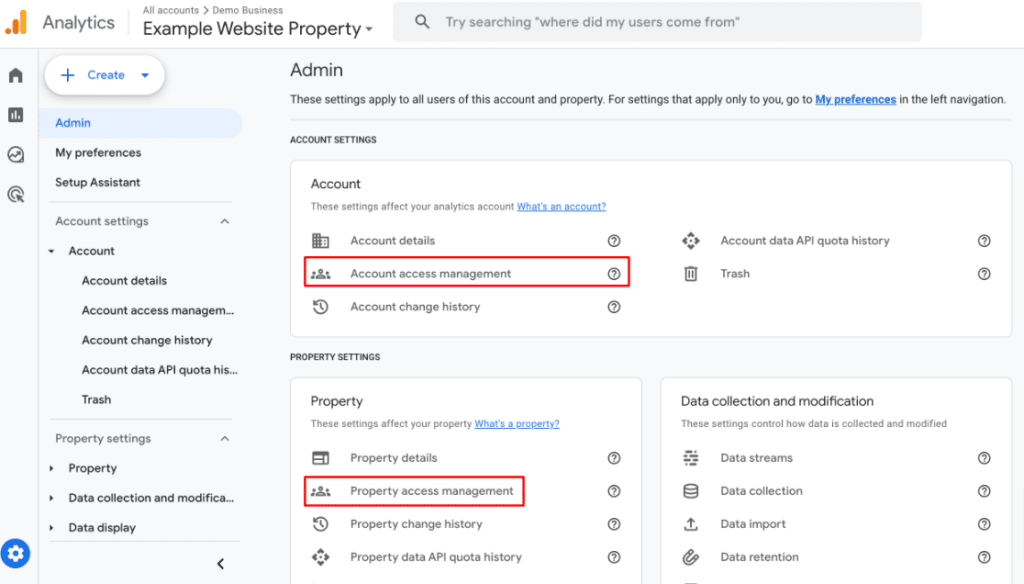
- In the bottom-left corner, click Admin (⚙️).
- Under the Property column, click Access Management.
- Click the + button in the top-right > Add users.
- Enter: clients2@artemis.marketing
- Tick Editor (this gives us enough access for setup and tracking).
- Click Add.
Google Search Console (GSC)
Steps
- Go to https://search.google.com/search-console/
- Select the property (website) you want to give access to.
- On the left-hand menu, click Settings.
- Under Users and permissions, click Add user.
- Enter: clients2@artemis.marketing
- Choose Full permission.
- Click Add.

Google Tag Manager (GTM)
Steps
- Visit https://tagmanager.google.com/
- Select the relevant Account.
- Click Admin in the top navigation.
- Under the Container click User Management.
- Click the blue + (top right) > Add users.
- Enter: clients2@artemis.marketing
- Tick all permissions (required to configure tags properly).
- Click Invitation (blue button).

Google Business Profile (GBP)
Steps
- Go to Google and search your business name (while logged in to the Google account that manages the profile).
- Your Business Profile panel will appear directly in Search.
- If your business does not appear in Search, go to https://business.google.com/ and select your business
- Click Menu (⋮) or three dots next to “Your business on Google”.
- Select Business Profile settings.
- Choose Managers / Add manager.
- Enter: artemis.clients@gmail.com
- Choose Manager (enough access for optimisation).
- Click Invite.

Google Merchant Center Access
Steps
- Log in to Google Merchant Center at https://merchants.google.com
- In the left-hand menu, go to: Settings → Account access
- Click ‘Add user’.
- Add our email: artemis.clients@gmail.com
- Set permission level to: Admin (this allows us to review feed settings, fix issues, and integrate tracking correctly).
- Click Invite.